You can check whether an order or invoice has been successfully sent from Colladium to MYOB and view details about any issues.
Purchase orders received in Colladium are created as sales orders in MYOB.
Check an order or invoice’s MYOB status
- In Colladium, go to:
- Forms > Orders to check a purchase order sent to MYOB as a sales order, or
- Forms > Invoices to check an invoice.
- Find the order or invoice you want to check.
- Review the MYOB status column on the right-hand side:
- Green tick: the order or invoice was successfully sent to MYOB.
- Spinner: the order or invoice is currently being sent.
- Orange warning icon: there was an issue sending the order or invoice.
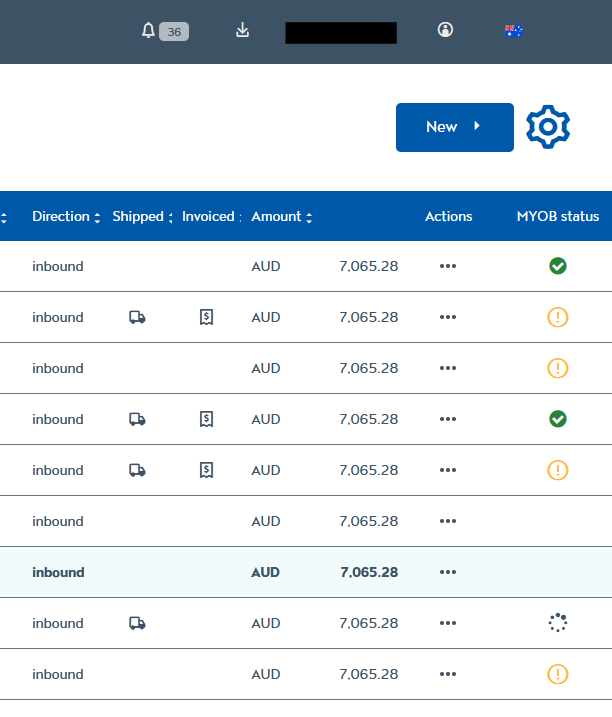
- Click the status icon to view more information.
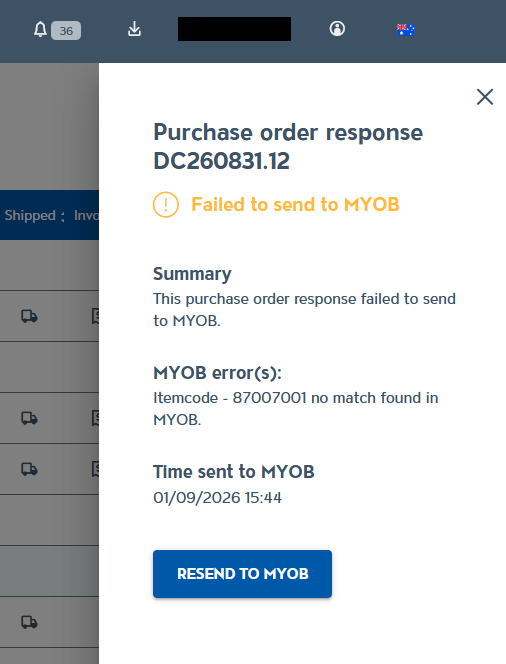
If there was an issue, you’ll see the error returned by MYOB. Make the required change in Colladium or MYOB, then click Resend to MYOB.
If you can’t find the order or invoice in MYOB
If Colladium shows that the document was successfully sent but you can’t find it in MYOB:
- Check the correct location in MYOB. Purchase orders from Colladium appear as sales orders in MYOB, while invoices appear as sales invoices.
- Search using the document number. Copy the purchase order or invoice number from Colladium and search for it in MYOB.
- Check your filters. Make sure the current status, customer or date filters aren’t excluding the document.
- Check the document date. The order or invoice may not appear if the selected date range doesn’t include its date.
- Confirm you’re viewing the correct MYOB business or company file. This is particularly important if you have access to more than one.
- Refresh MYOB and check again after a few minutes. A document that is still being processed may not appear immediately.
If you still can’t find the order or invoice, contact our support team and provide the relevant purchase order or invoice number.